
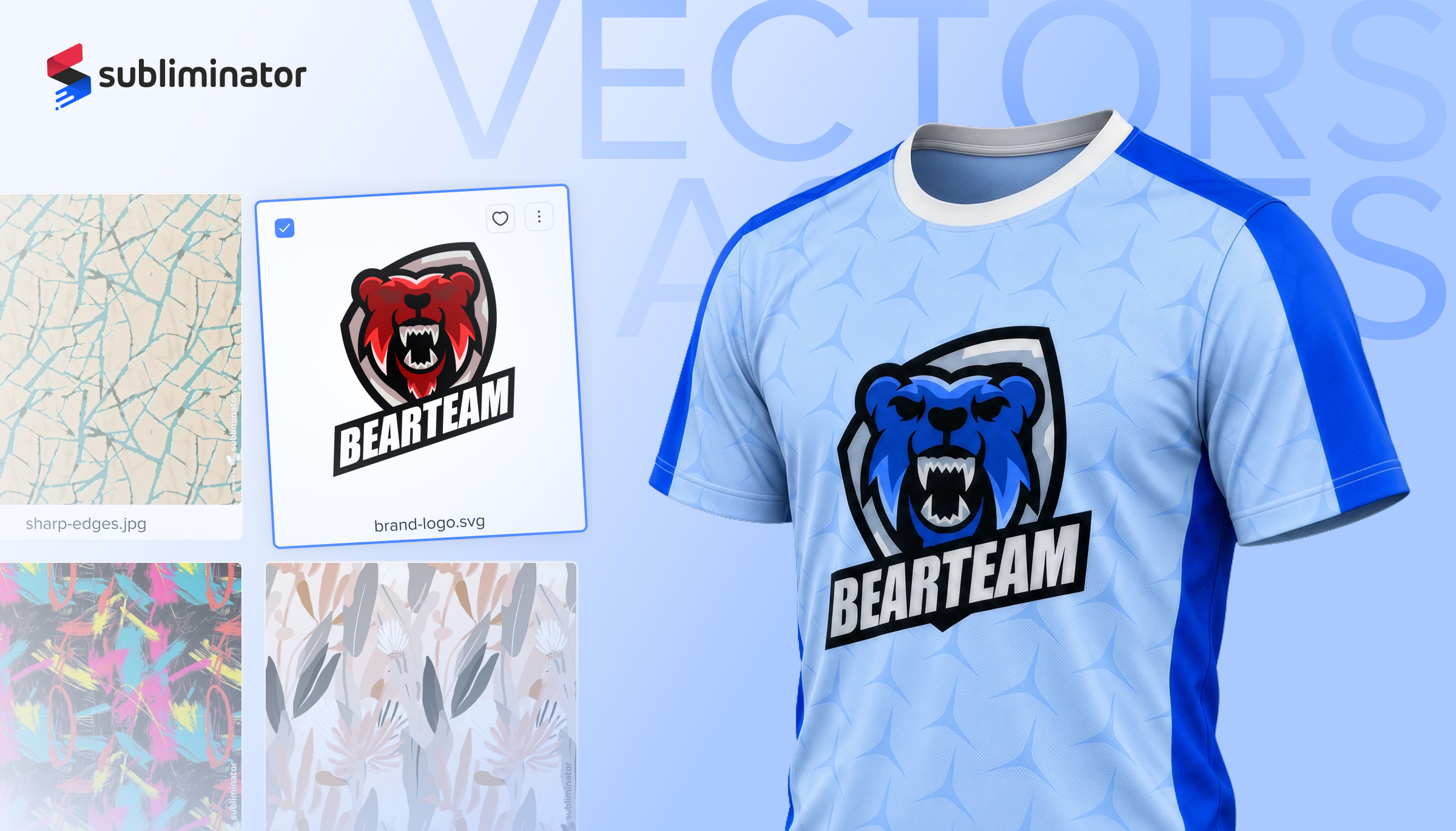
The Subliminator Creator just got its biggest design upgrade this year. You can now upload and edit SVG files, draw shapes straight from the toolbar, combine and group layers, and find every graphic, font and color you own in a rebuilt My Assets.
Until now, the Creator worked with raster images like PNG and JPG. It now accepts .svg files too. Upload them the same way you add any image: through the upload zone, by drag-and-drop onto the canvas, or from My Assets.
When an SVG comes in, the Creator looks at how complex it is and handles it accordingly:
Every vector layer has the controls you expect: width and height with ratio lock, scale, rotation, opacity and reset. A new Clip to imported bounds switch decides what happens to artwork that sits outside the file's original frame: keep it hidden, or show everything in full.
For production, your vector artwork is rendered at the full print resolution of the product, so edges stay clean on the final garment.
You no longer need an outside design tool for basic shapes. The toolbar now has four shape tools, each inserted as an editable vector layer:
Shapes are useful for the details that make a product look finished: number backgrounds on jerseys, color blocks, frames around a logo, stripes and dividers.
Select two or more vector layers and the Combine panel appears with four operations:
Combine is non-destructive: the original shapes stay editable inside the result, and Ctrl+Z (Cmd+Z on Mac) takes you back a step.
Designs for all over print products often stack many layers: a logo, a slogan, a few shapes, a pattern. You can now select several layers and group them, then move, scale and rotate the group as a single object. Ungroup at any time to get the original layers back.
To edit one item without breaking the group, double-click the group to step inside it, then click outside to step back out.
My Assets has been rebuilt around one idea: find what you need in seconds, whether you are on the My Assets page or working inside the Creator.
Everything is now split into clear sections:
A few changes worth knowing about:
The Assets tab inside the Creator uses the same structure: a compact view with your recently used assets, and an expanded view with every section and your storage meter.
We also launched a Request a Feature board. Suggest an idea, or vote on the ones you want most. The most requested features move to the front of the line. You can open it straight from the app.
Next up is a Graphics library inside the Creator: ready-to-use styled text presets and vector illustrations you can drop onto a product in one click, built on the SVG and shape support released today.
Images in JPG, PNG and SVG, and fonts in OTF and TTF. Font families can also be uploaded as a ZIP.
Yes. Vector artwork is rendered at the print resolution of the product at export, so it does not lose quality when scaled up on a large panel like the back of a hoodie.
Yes. Simple SVGs can be split into individual shapes that you can move, recolor and combine. Detailed illustrations stay as one layer that you can resize, rotate and adjust.
Yes. Adding an asset to a folder does not move it. It stays in its own section and can sit in as many folders as you like.
Membership accounts get 100 GB and free accounts get 10 GB. The storage meter in My Assets shows how much you have used.

Project Manager at Subliminator.
